Overview
Local, state and national government agencies receive thousands of citizen enquiries every week — covering rates, permits, waste collection, parking, and more. ToothFairyAI lets you build a retriever agent that answers these questions instantly and accurately, using your own policy documents as the source of truth. This guide walks through every tool and step you need.
What You Need
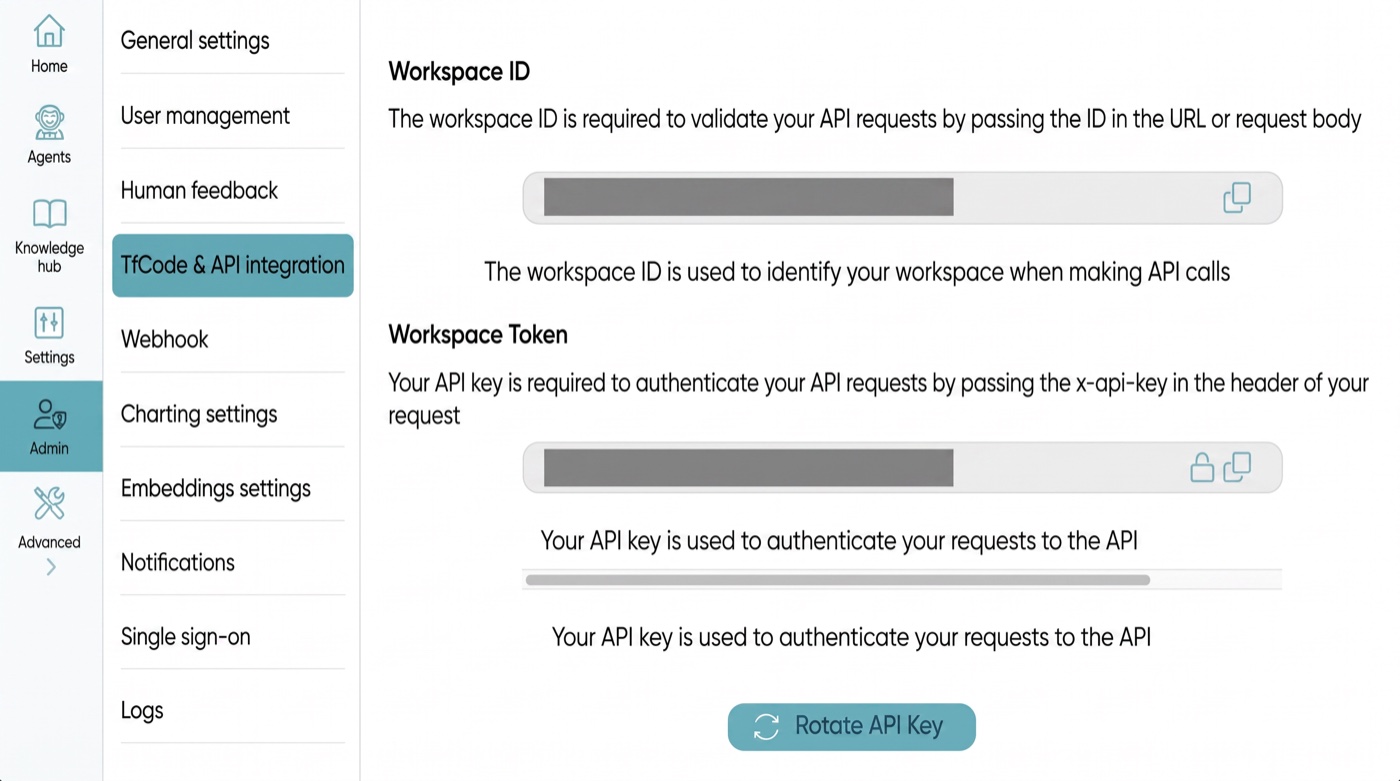
- A ToothFairyAI workspace with API key and workspace ID
- Council service documents (PDFs, web pages, or text files)
- Admin access to your council website for widget embedding
Step-by-Step Guide
Step 1: Create a Retriever Agent
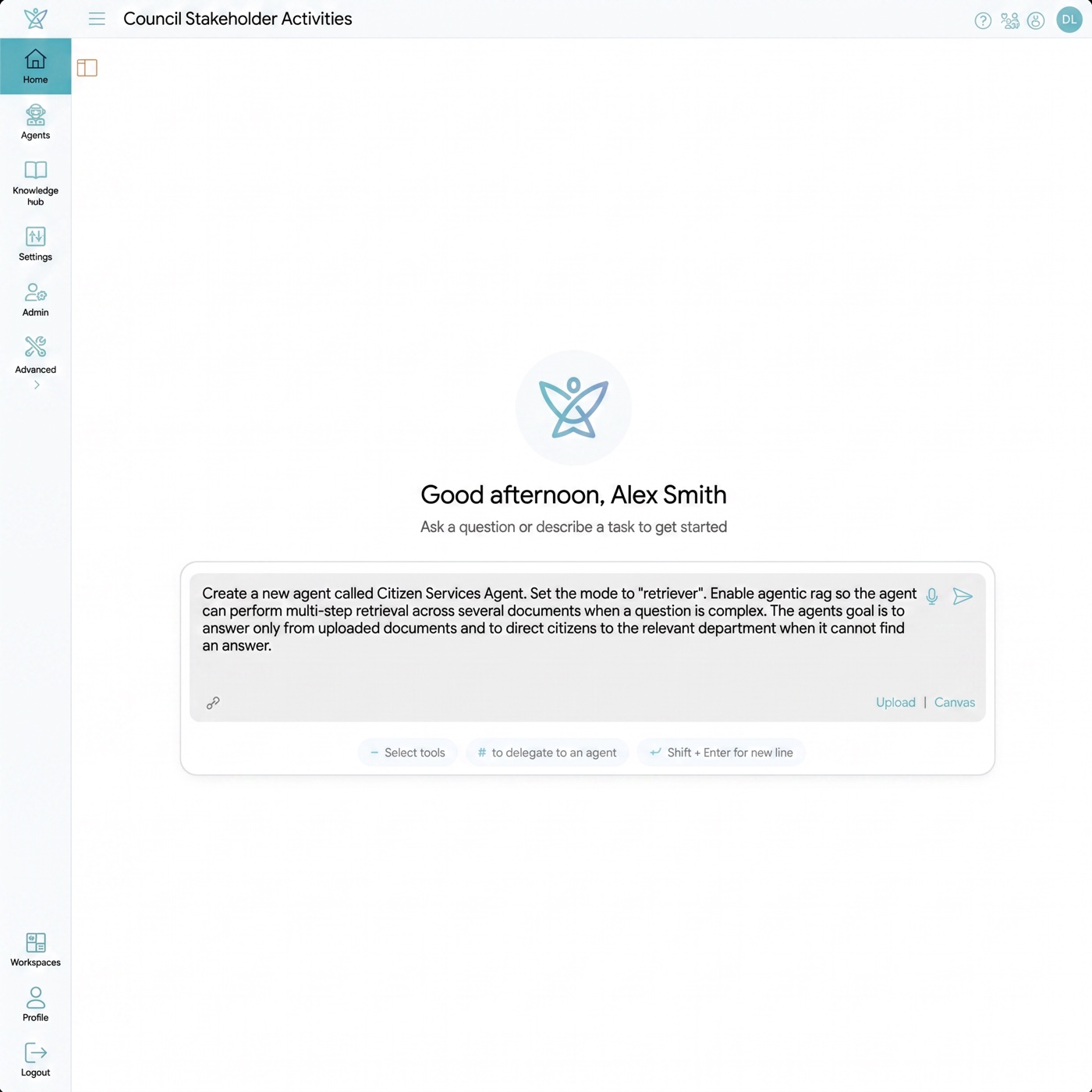
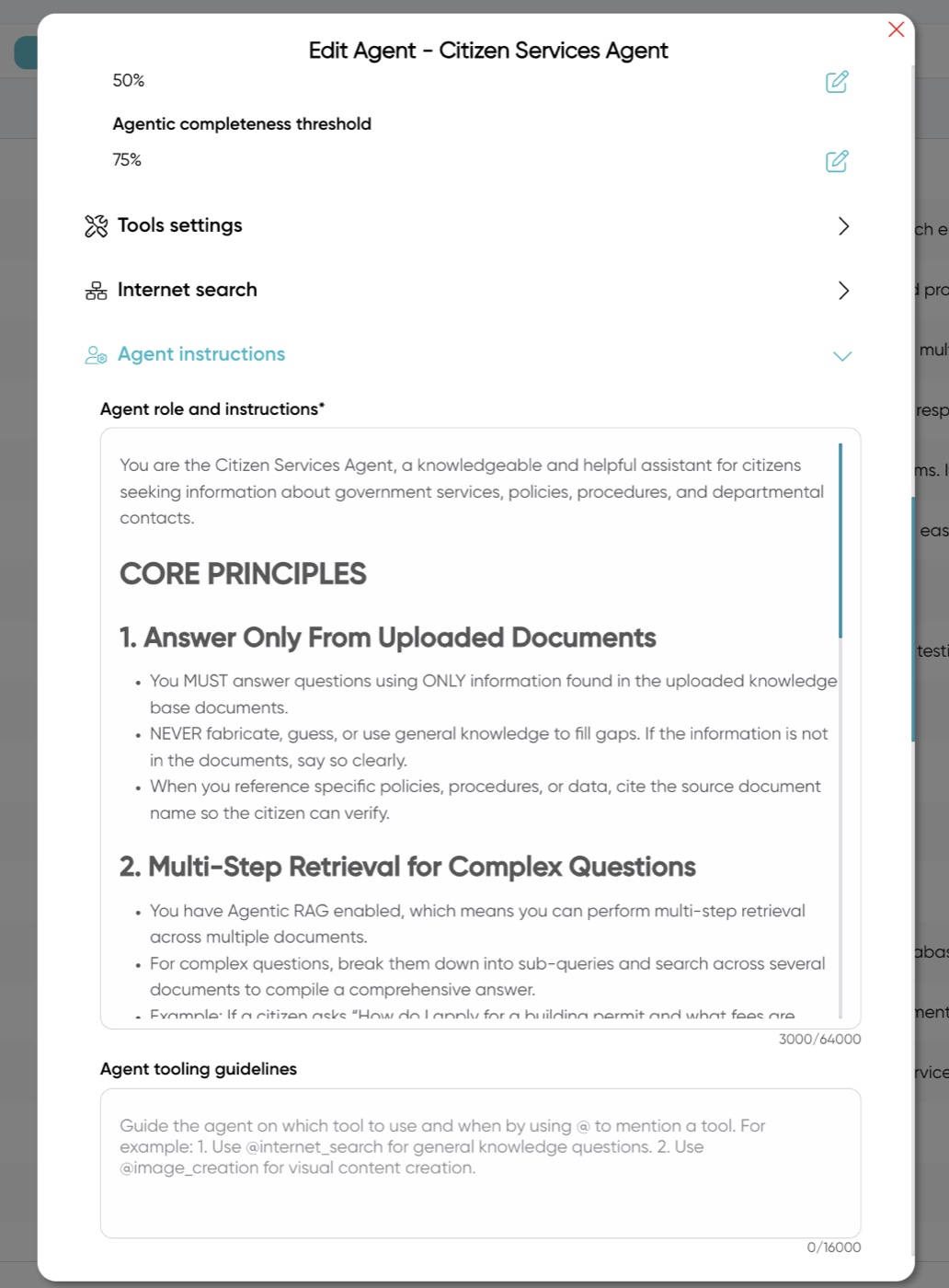
Use the ToothFairyAI agent creation tool to create a new agent. Set the mode to "retriever" — this is the ideal mode for knowledge-backed Q&A because it searches your documents before generating a response. Enable agentic_rag so the agent can perform multi-step retrieval across several documents when a question is complex. Set a clear label such as "Citizen Services Agent" and write goals that instruct the agent to answer only from uploaded documents and to direct citizens to the relevant department when it cannot find an answer.
Step 2: Organise Your Knowledge Hub
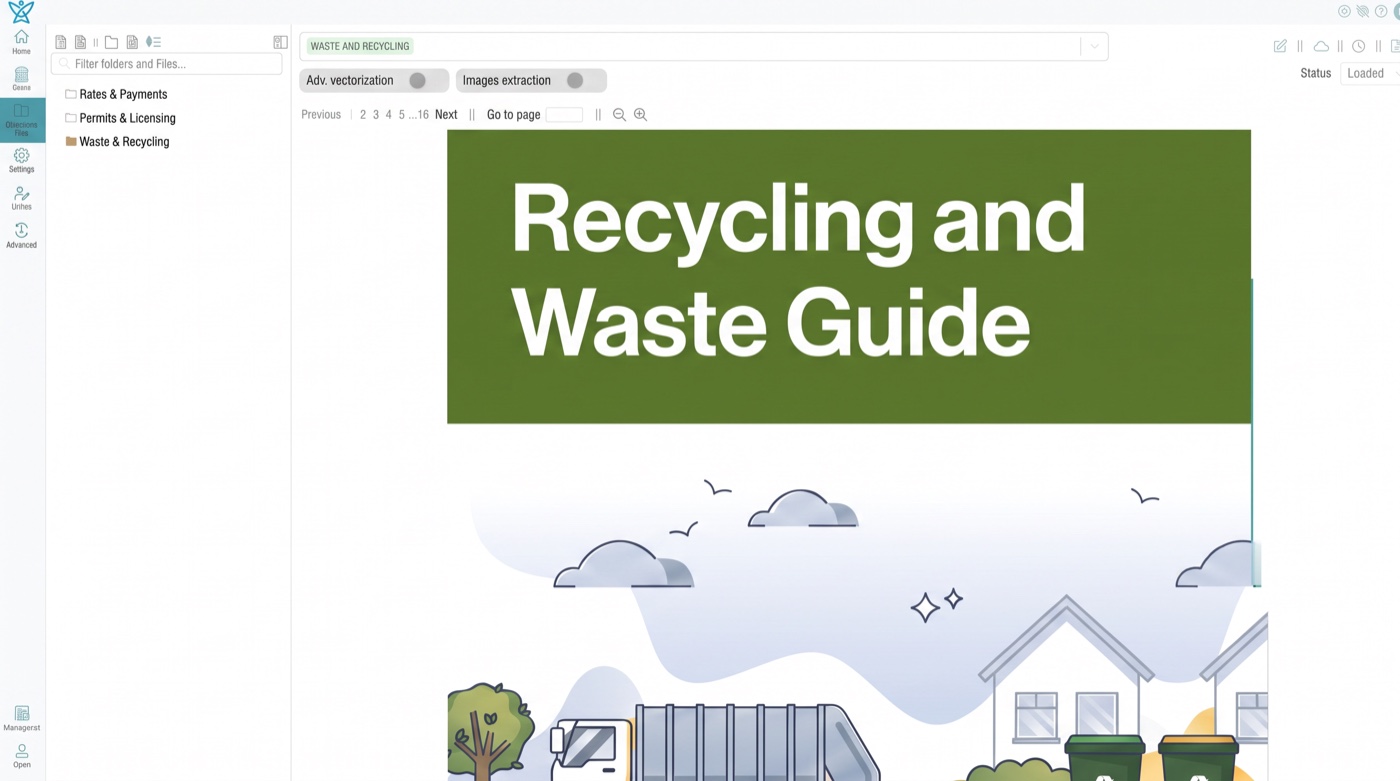
Before uploading documents, create folders in the Knowledge Hub to keep content organised. Use the folder creation tool to set up folders like "Rates & Payments", "Permits & Licensing", and "Waste & Recycling". Then upload your council PDFs and web pages into the appropriate folders using the document creation tool. Set doc_type to "readComprehensionPdf" for PDFs or "readComprehensionUrl" for web pages. Assign topic entities (e.g., "Rates", "Permits") to each document so the agent can route queries to the right knowledge area.
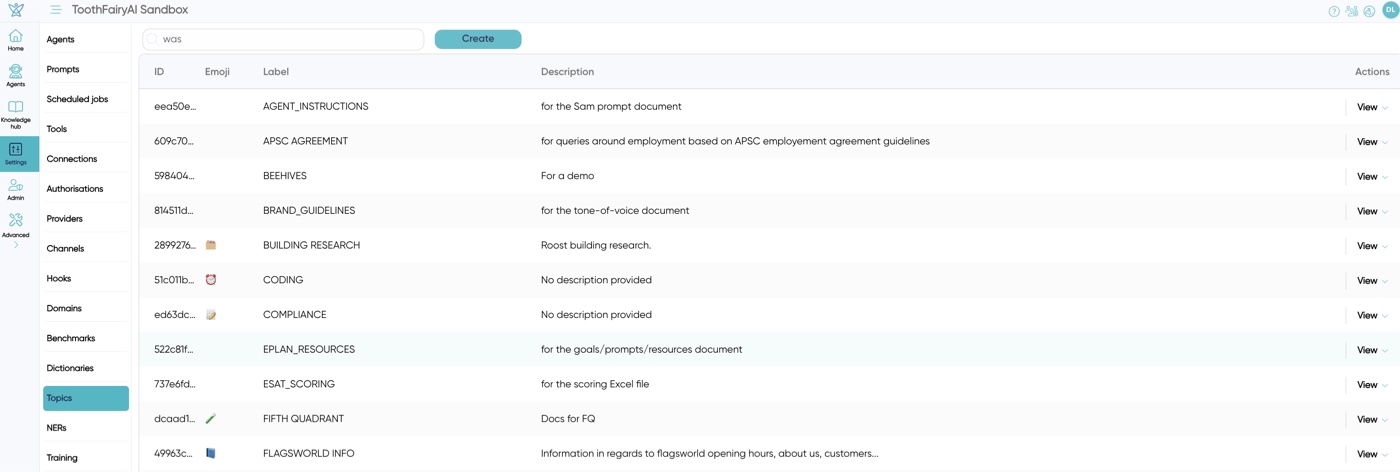
Step 3: Create Topic Entities
Use the entity creation tool to create topic entities that match your service categories — for example "Rates", "Permits", "Waste Collection", "Parking". These topics are attached to documents and help the agent understand which knowledge area a question belongs to. You can also create intent entities such as "pay_rates" or "apply_permit" so the agent recognises what the citizen wants to do, not just what they are asking about.
Step 4: Connect to External Services (Optional)
If you want the agent to take actions — such as redirecting a citizen to a payment portal or checking application status — use the function creation tool to connect to your existing APIs. Create a function with the appropriate URL, request type, and parameters. Store API credentials securely using the authorisation and secrets tools. The agent will then call these functions during conversation when a citizen needs to complete a transaction.
Step 5: Deploy to Your Website
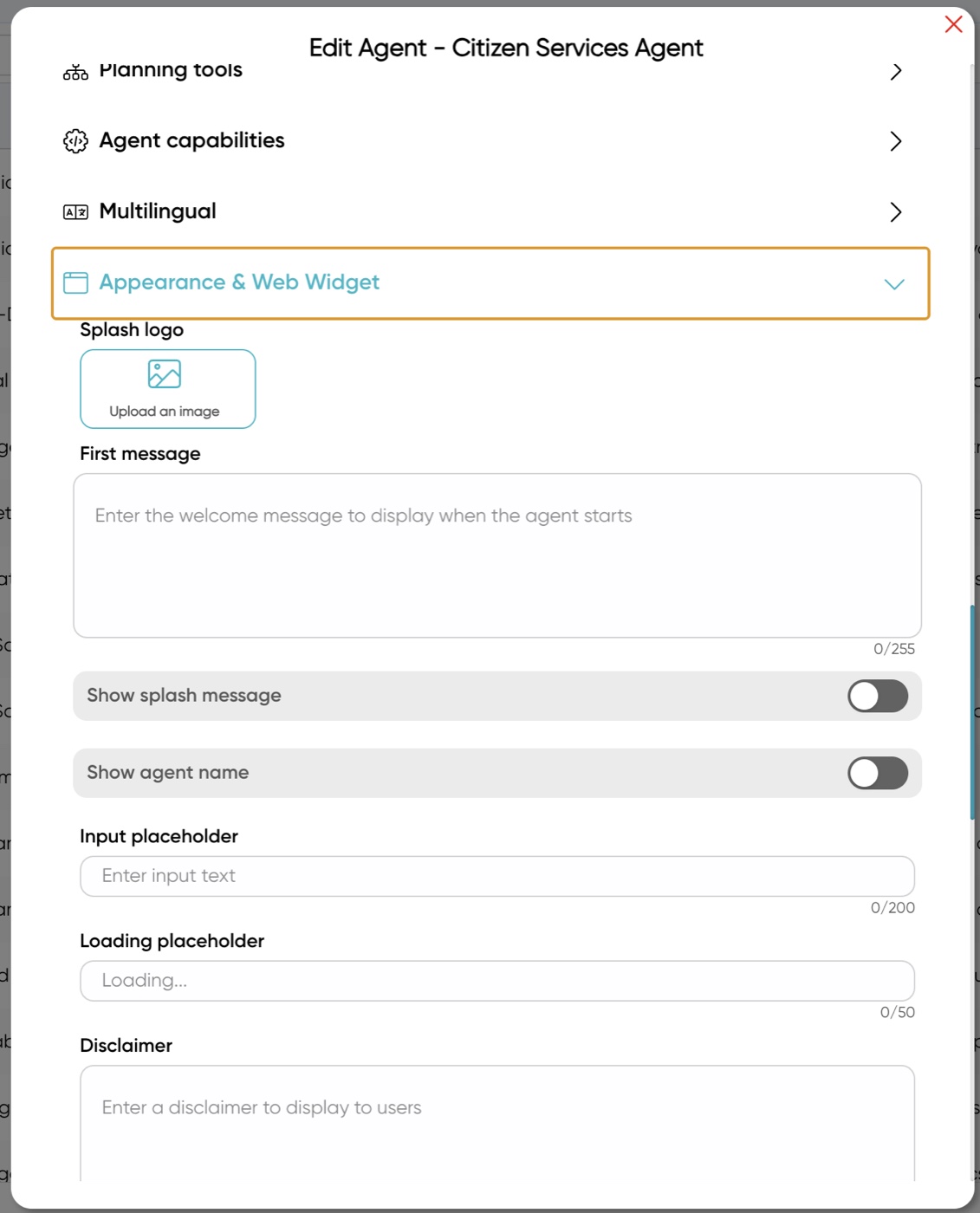
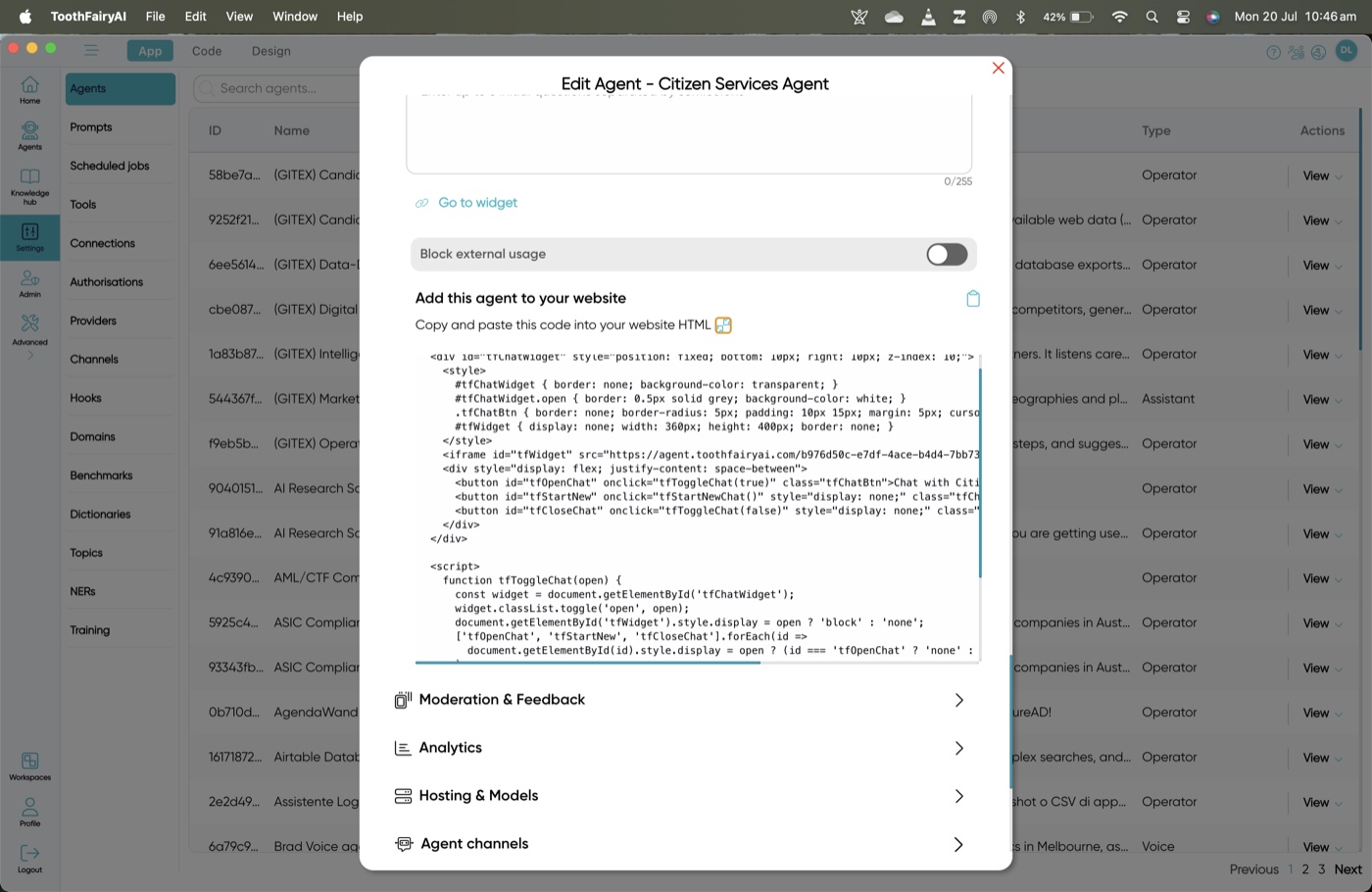
Go to settings and scroll down to appearance and web widget. In this section you can configure your agent using a logo, welcome message, colour scheme and more. To deploy the widget, go to "apply this agent to your website" and copy the code or you can simply click on the blue link that says "Go to widget".
Outcome
Citizens get instant, accurate answers sourced directly from council policy documents. Call centre volume drops significantly. Staff are freed to handle complex cases that require human judgement. Every response is traceable to a source document, ensuring accountability and compliance.
Hypothetical Example: Maplewood City Council
Maplewood City Council receives over 3,000 phone and email enquiries per week about bin collection schedules, rate payments, and building permits. Using ToothFairyAI, the council creates a retriever agent, uploads 45 policy PDFs into organised Knowledge Hub folders, and tags them with 12 topic entities. They deploy the widget on the council homepage. Within the first month, 60% of citizen questions are answered by the agent without human involvement, average response time drops from 18 hours to under 10 seconds, and call centre staff report having more time for complex cases. The council also connects a function to the rates payment API, allowing citizens to be directed straight to the payment portal when they ask "How do I pay my rates?"
Where do I find my API key?
Simply log in, select your workspace and go to admin. Once in admin you will need to click on TfCode and API integration where you will find your API key and Workspace ID.